
Furuno MFD - NavNet – Setting specific Static IP Address
By default, our Nightwave Digital is setup to join a DHCP network.
If your boat’s network already uses a DHCP server (in a PC or MFD) you could make use of this to supply an IP address to the camera.
Or, if your network is configured with defined (static) addressing, you can configure the Nightwave Digital with an appropriate Static IP address (DHCP disabled)
You will need to have NightIQ firmware v3.0.2 or higher installed to see this option.
Please click here for articles on how to update the firmware {Laptop (recommended),
Mobile App (may take several attempts), Wireless Browser on phone}
=============================
How to set up Static IP
You will need to specify the NIGHTWAVE DIGITAL IP address (and RTSP stream) in the Furuno network device configuration menus.
We recommend this static address for the camera when configured in a Furuno static IP system: 172.31.201.69/lowres as this will ensure no future device conflicts following pending changes to be implemented by Furuno (date TBD)
Depending on your Furuno –
On some Furunos, in the Video / Manage cameras settings, there should be a choice called "VIDEO STREAMING” or H.264. You will not be able to use the IP Camera 1 - 4 sections as they don't allow you to enter an alphanumberic URL.
Change the Nickname, and for the URL enter 172.31.201.69/lowres
(If it says “use as Sonar Video input” turn that OFF to make the Video Source appear in the Home Page as a Video icon. If you keep it ON by accident, look for the Video Source under the SONAR icon. We recommend to turn this OFF.)
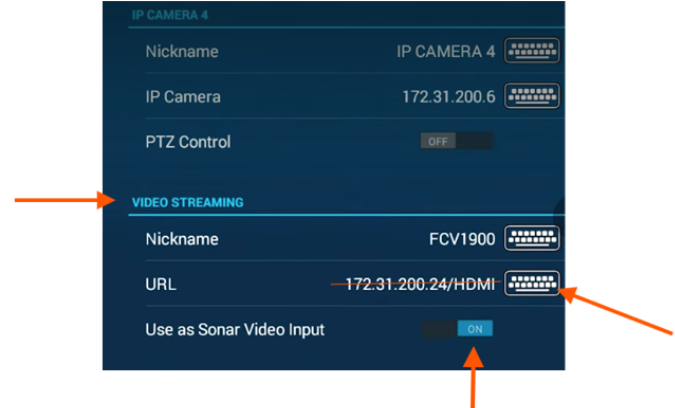
If you see an IP CAMERA already loaded into the IP CAMERA slots 1,2,3 or 4 that have the Nickname set to NIGHTWAVE DIGITAL and it is not working, these should be deleted from those CAMERA IP slots since the video feed requires the full URL to open.
--------------
However - On some Furuno settings menus, the camera settings are hidden.
One way around this is to Add the Video icon to home, tap the Video icon,
then Swipe up from the bottom.
A tiny Settings button will appear in the bottom overlay bar.
This will take you to the Video Settings page where you can add the IP address of the RTSP stream as previously described.
You should select the lowres stream – or type in the URL 172.31.201.69/lowres then choose Fit, not Stretch
----------------
Now set the Nightwave Digital to the same IP Address of 172.31.201.69
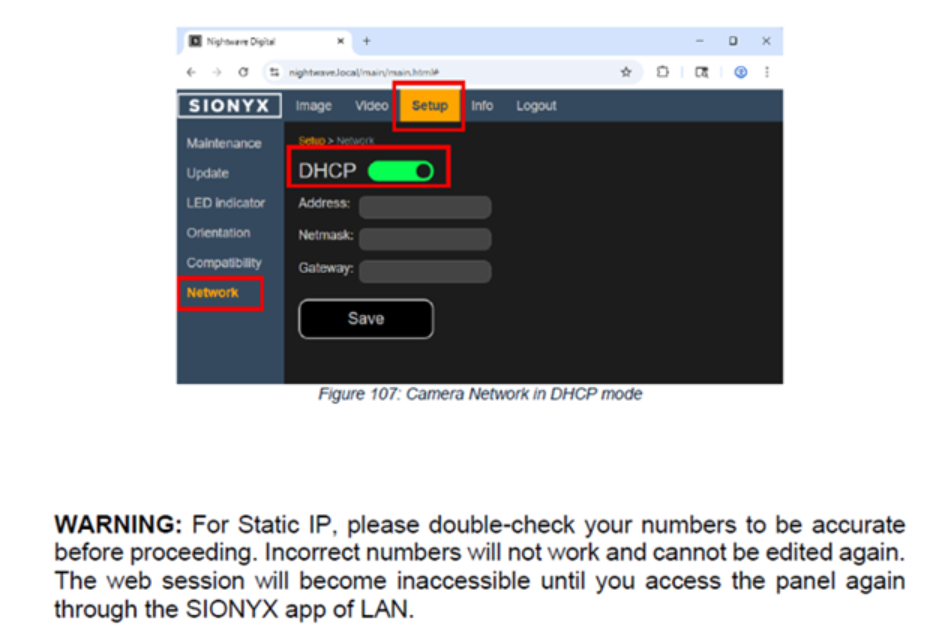
Go into the SIONYX Tool-panel icon on the MFD (or the one on the SIONYX mobile app) and assign the Static IP address on the Nightwave to match.
From the SIONYX Tool-panel:
Do a Factory Reset, followed by a Network Reset and allow the camera to reboot.
Turn DHCP OFF (below screenshot shows it ON) and then enter these specific values exactly - for Address, Netmask & Gateway:
Address: 172.31.201.69
Netmask: 255.255.0.0
Gateway: 172.31.201.69
Power cycle both the Furuno and the Nightwave.
From the SIONYX Tool Panel, Setup image size / resolution to match your MFD Display aspect ratio. For example, the TZtouch2 15-inch MFD is screen size 1366x768 display so you can reduce the camera output image to the next lowest 16:9 aspect ratio. On the NWD that setting would be 1280x720 (16:9).
Reboot the Nightwave once more to apply the new image size / resolution.
Check the Furuno Video Icon/ Camera Page to see live image. Note, on older Furunos initial buffering may take several seconds.