
The Sionyx Tool Panel for Nightwave Digital is typically accessed through your MFD or the Sionyx mobile app.
The following instructions describe an alternative connection approach.
Using a mobile device to connect directly to the camera's wireless network and then accessing the web pages of Nightwave Digital through a mobile browser.
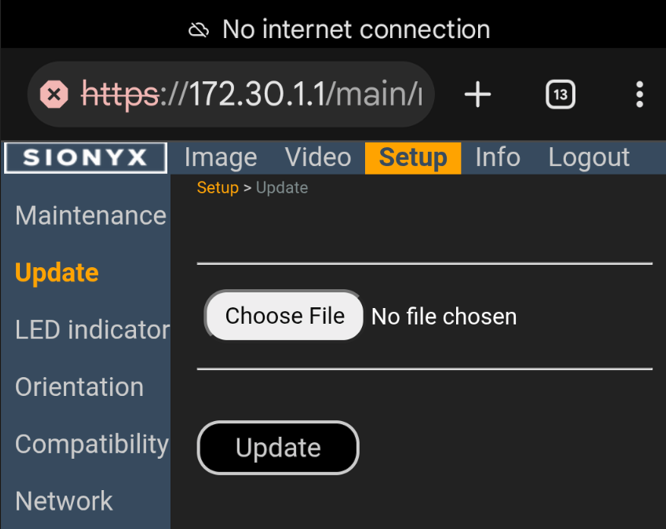
If you plan to upgrade NightIQ Firmware for Nightwave Digital, make sure you have downloaded the firmware file to your mobile device before starting this process.
Password
If your Nightwave Digital is running NightIQ v2.1.6, the wireless password is sionyxcam
If your Nightwave Digital firmware has been upgraded, use the wireless password supplied with your camera.
Disconnect from other networks
Close other apps on your mobile device
Turn Cellular Data OFF
Disconnect from other WiFi networks
Connect to the Nightwave Digital wireless network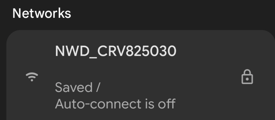
From the settings of your mobile device, find the camera's WiFi network.
This will be named NWD_CRV8........
The unique Network SSID will show you your camera serial number
Connect to this network
Enter the camera password when prompted (see above)
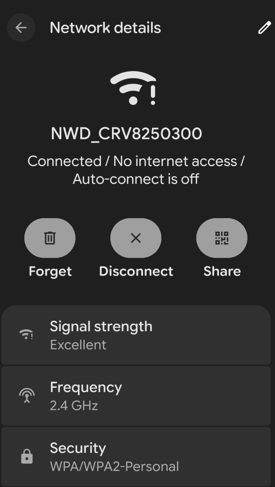
Ignore notifications about this network having No Internet Access - you are creating a direct connection between the phone
If prompted, choose to Stay Connected to this Network
Open your web browser
Enter the following in the address bar of your web browser
http://172.30.1.1
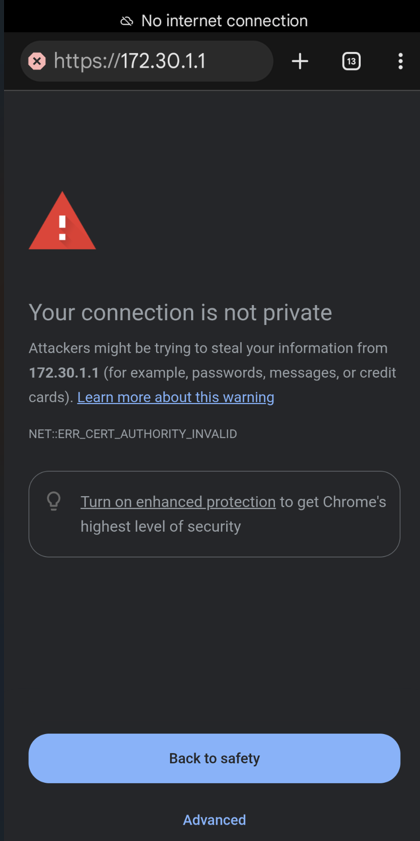
NOTE: use http, not https which your browser may try to switch to by default.
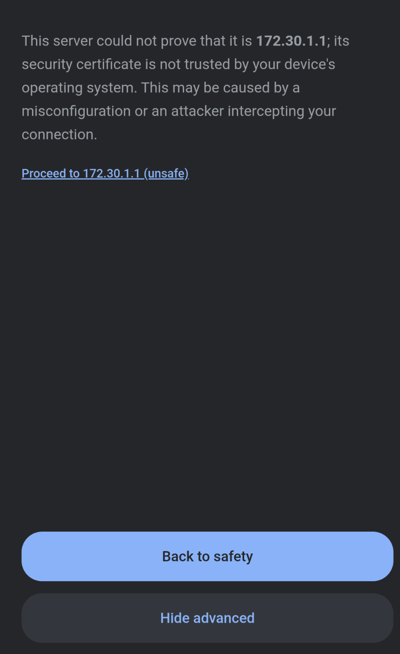
If you see warnings about the connection not being private, you can safely ignore this.
(Again, you are creating a direct connection between the phone and the camera, you are not accessing the internet.)
Click "Advanced" or "Proceed to 172.30.1.1(unsafe)"
to access this URL
 |  |
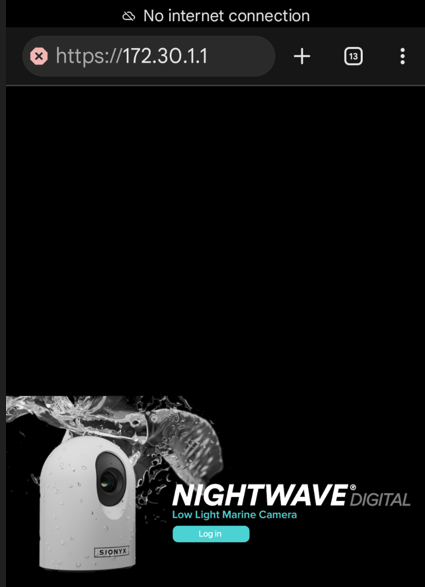
You should then see the Login page for the Nightwave Digital (no password needed)
 |  |