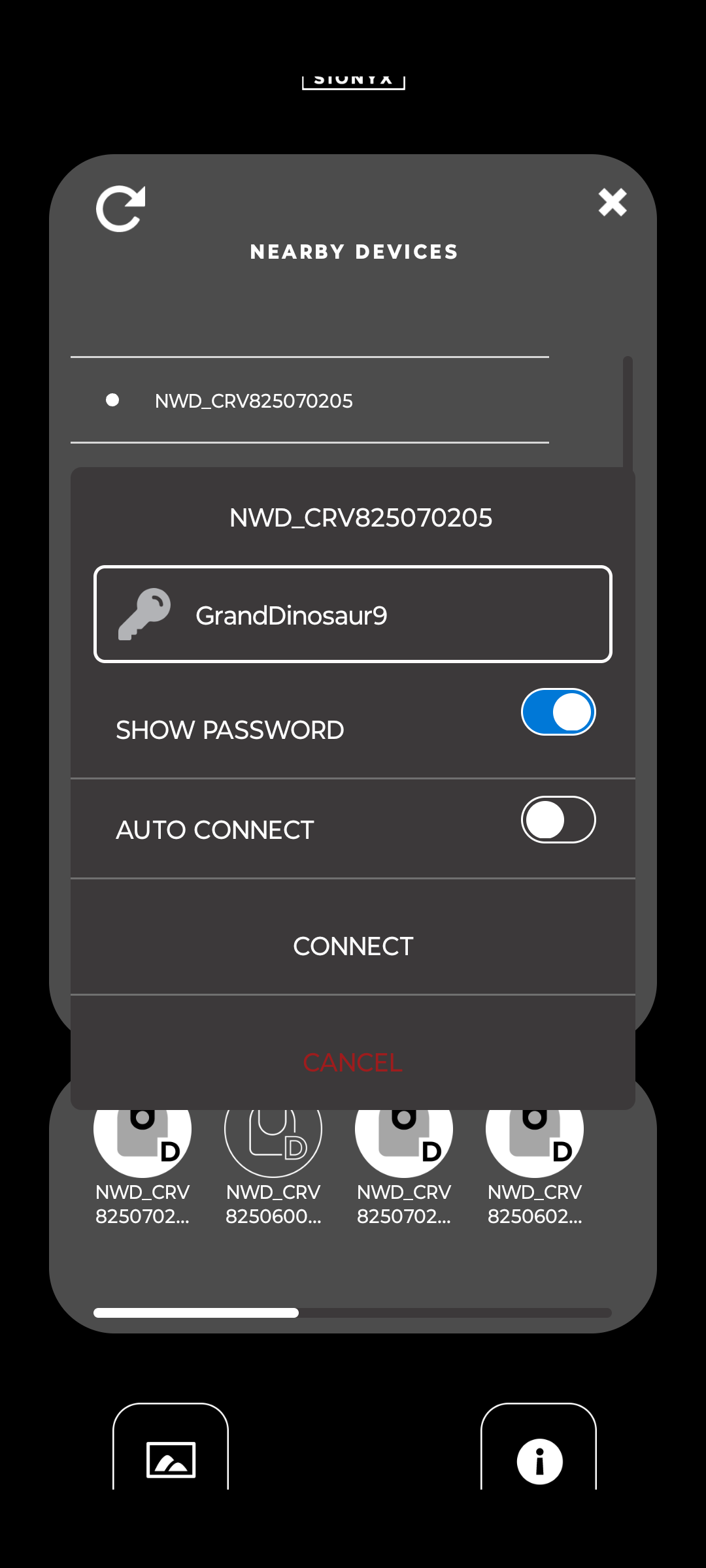
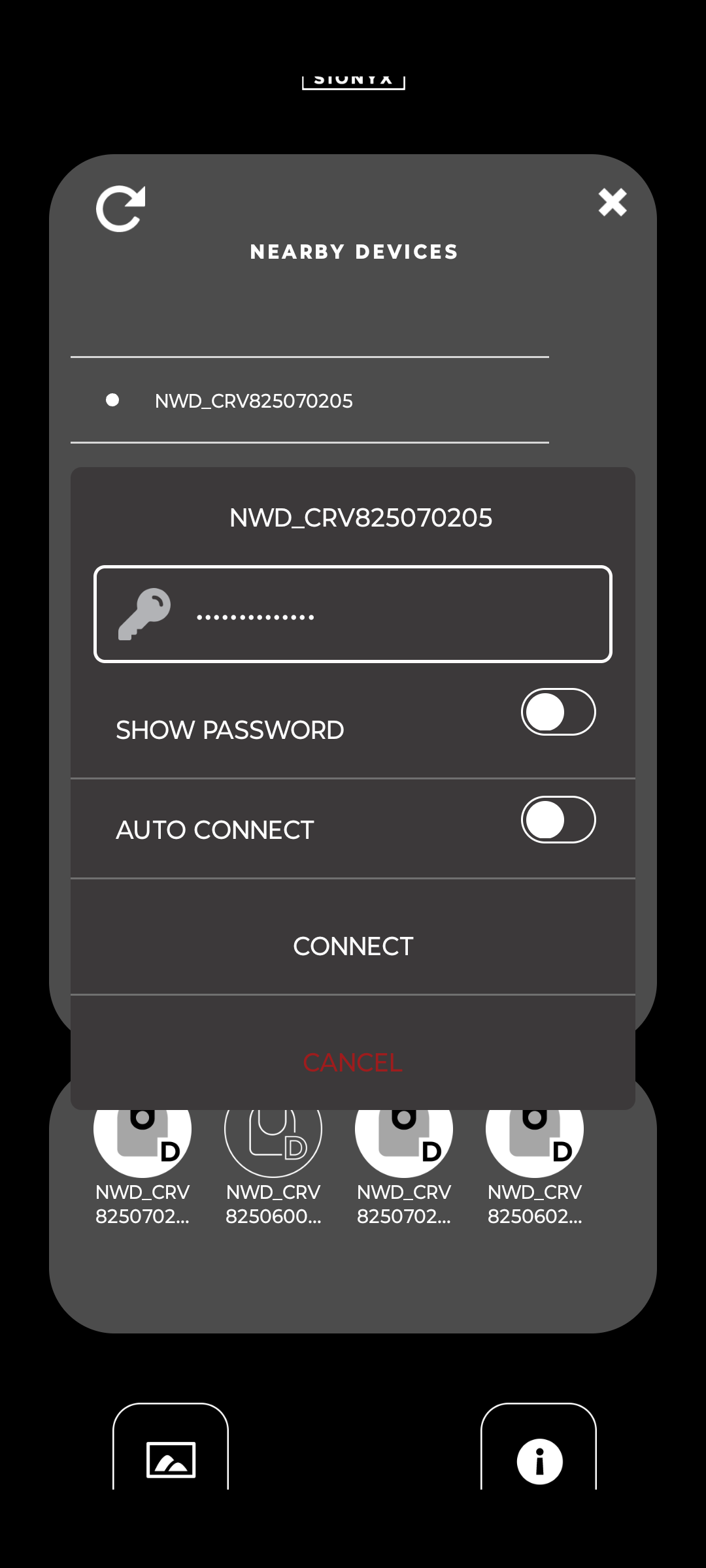
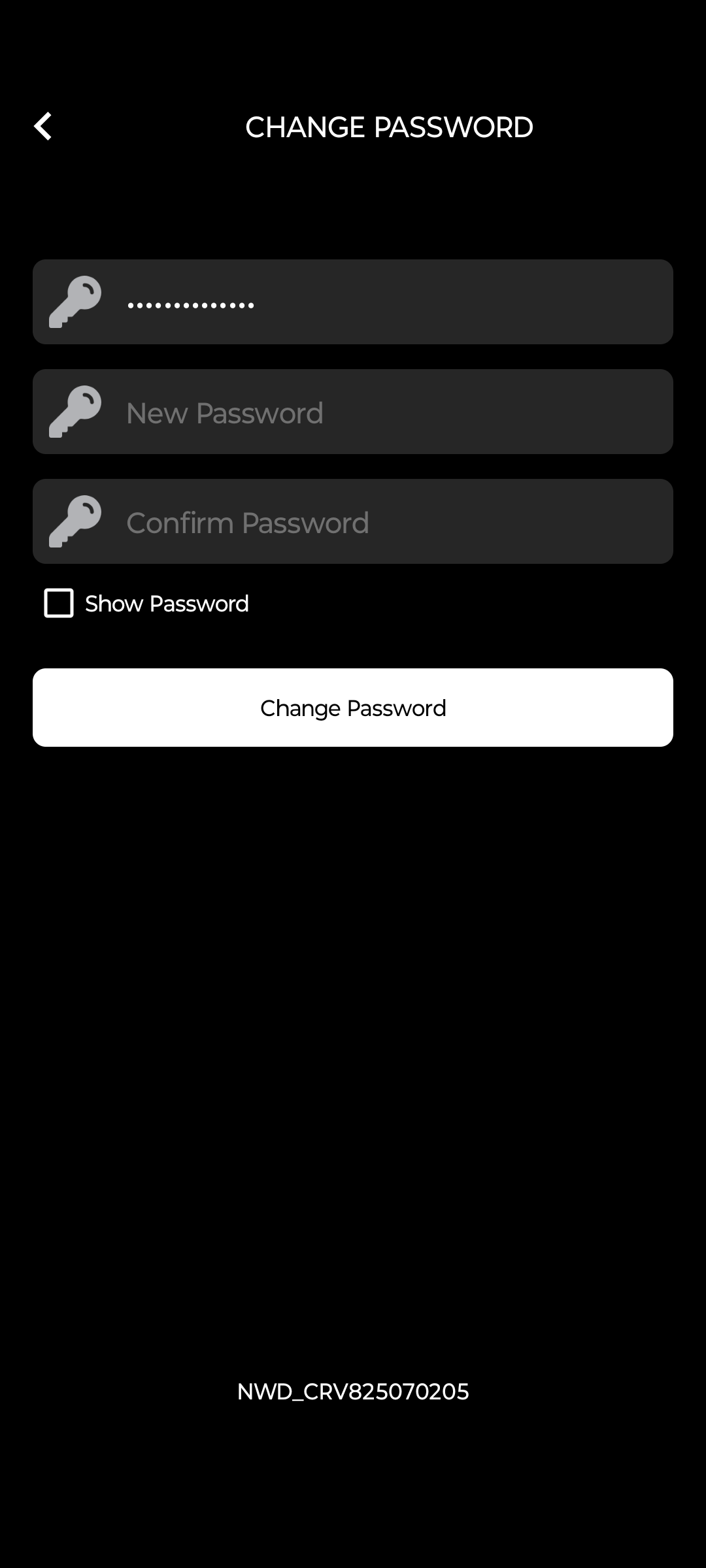
Here are screen shots from the Sionyx Mobile App showing how to change your WiFi password from the unique, factory-supplied password to something custom.
For users with MFDs that display the Sionyx Tool panel, the WiFi password is available on the status page.
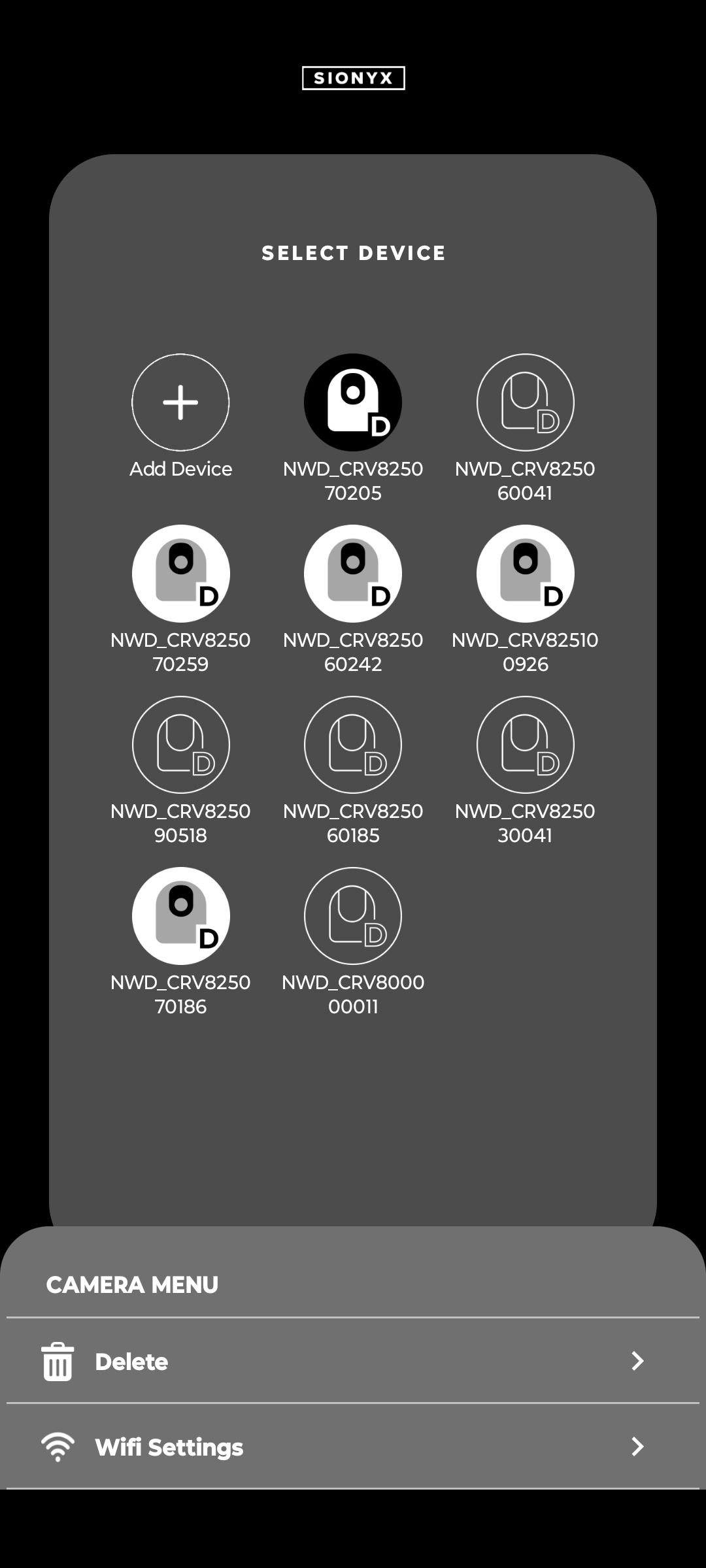
Once you have connected to the Nightwave Digital over WiFi using the Sionyx mobile app the camera device icon will turn black.
Perform a long press on the camera icon after you are connected. Look for the icon to change to black.
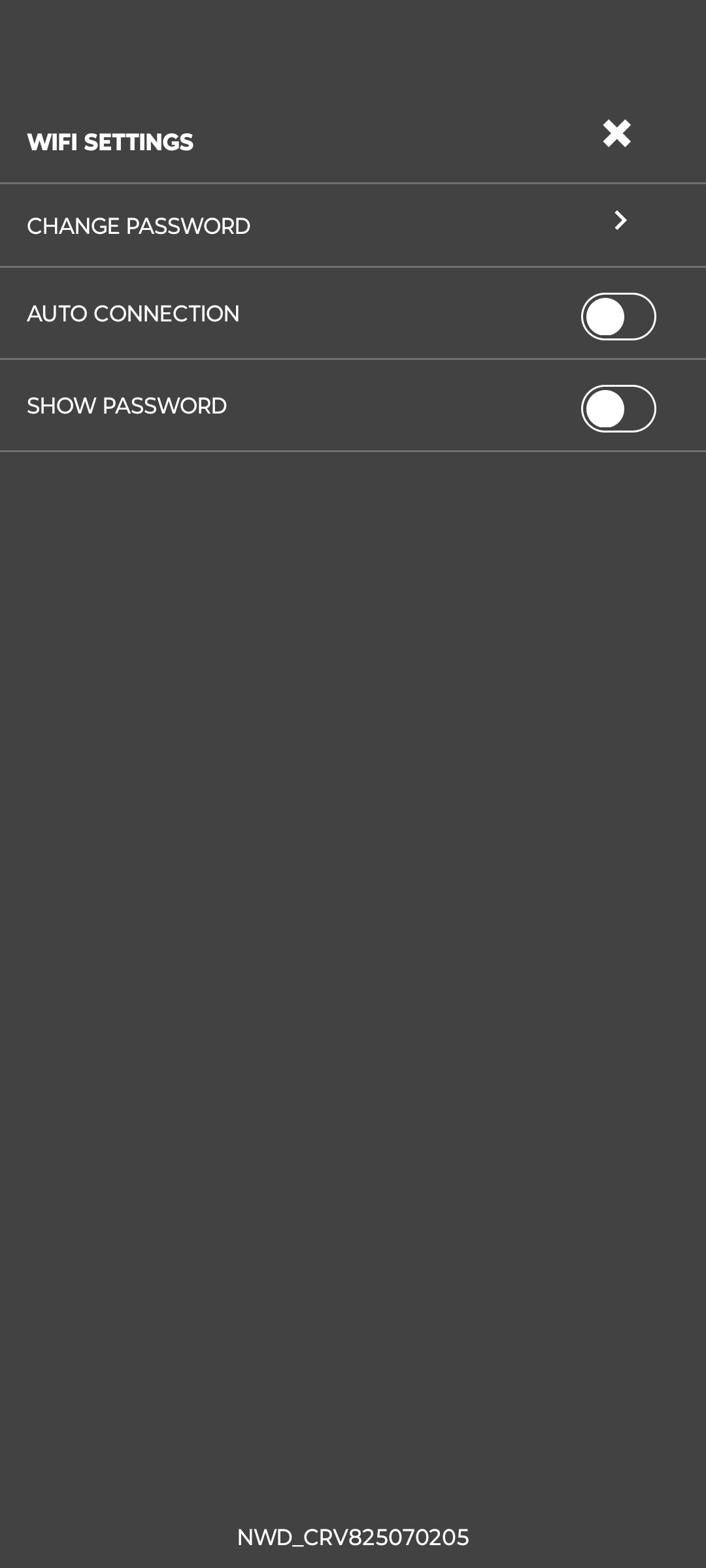
The Camera Menu opens... Select Wifi Settings > CHANGE PASSWORD >
Confirm your old password, and then type in your new password where it says new password and confirm password.
Tap the Change Password button to save.