
I have a blinking red LED on the front of my Nightwave Digital – what does that mean?
The camera is receiving power, but the camera network address has not been provided by, or shared with, the connected device (computer or MFD)
When the Multifunction Display (MFD) and camera are correctly connected you will see the status light on the front of the camera go solid red.
Possible reasons for Blinking Red LED:
MFD powered OFF
Bad network connection
Incorrect network cable
If the MFD is ON and you have installed the camera as outlined in the Installation Guide and Installation Video but you still see a Blinking Red status LED;
Double check all ethernet cables between camera and MFD – our cables are not proprietary, use any Cat5e (or better) ethernet cable.
However, the ends of each cable should be correctly terminated with RJ45 plugs, crimped to the 568B standard i.e. the order of the conductors at each end should match
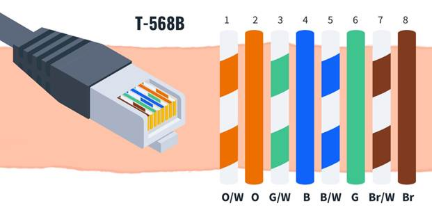
These are known as Straight cables, do not use a cross-over cable anywhere in the chain.
N.B. some Garmin patch cables are cross-over.
Double check all the RJ45 plugs between camera and MFD – look closely at the contacts and the insulators between them. Here is an example of an RJ45 plug that prevented communication with the camera, after a tool was dropped on the plug:
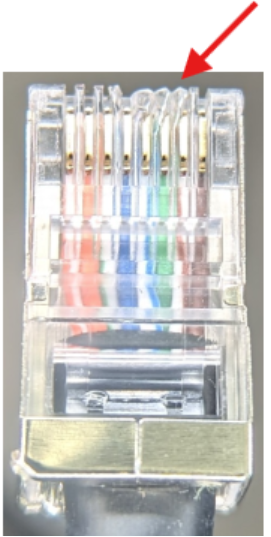
Cut off and re-crimp RJ45 plugs if you suspect any issues
Check PoE injector
If the back of any of the black waterproof cable glands are gripping the cable while the gland is screwed / unscrewed from the PoE Injector, this will twist and damage the network port.
Always make sure the back of the cable gland is loose, before fitting the gland into the metal box and the same before unscrewing the gland.
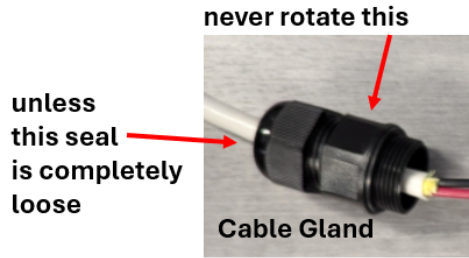
Remove power from the PoE injector and remove the network cables, inspect the RJ45 sockets and check they are undamaged and free from debris.
Whenever you finish installing the cable gland, only ever tighten the back seal until it is finger-tight. Do not crank down on this threaded fitting.
Restore power, do you have 3 lit LED lights on the PoE Injector? VIN, VOUT, AF.
(It is normal for AT not to be lit.) If missing a light - reseat, re-crimp or replace cables.
Or try another PoE injector if you have one. Our PoE injector is not proprietary.
(If you suspect you may have a damaged PoE injector reach out to support@sionyx.com)
Check RJ45 into the Camera ball head
Take out and reseat the RJ45 connection that goes into the bottom of the camera head. That boot sometimes isn't allowing the RJ45 to sit down correctly.
Bypass all switches and connect directly from PoE injector into the back of the MFD. (keeping the Garmin PoE isolation coupler in line if your Garmin is an 8000 series or earlier - this protects the Garmin.)
Even if you don’t have enough available ports, removing something to enable a direct connection between the PoE injector and the MFD is good practice to demonstrate you have connectivity and that the camera is working.
Many proprietary switches / hubs / port expanders lack the bandwidth to effectively pass marine network traffic from other devices (e.g. radar, sonar) plus high-resolution video.
As a result, we sometimes see latency / video artefacts introduced when the network cable is routed through these devices; or sometimes these switches will block network traffic from the camera completely. Directly connecting the PoE injector output directly to your MFD (through a Garmin PoE Isolation coupler if necessary) will avoid the throttling or blockage of Nightwave Video traffic by these switches.
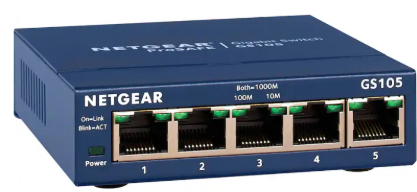
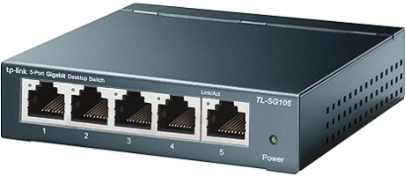
If during bench testing, you observe video disruption or a lack of connectivity (blinking red LED) and you lack an available network port on the rear of your MFD then any
Unmanaged Gigabit ethernet switch will provide a (non-marine grade) solution.
Low cost but effective 12V examples include:
If you have a BlueNet only system – 9000 series or above, then you do not need the Garmin PoE isolation coupler. The Garmin 9000 series has internal PoE protection.