
Nightwave Digital is compatible with a large number of Simrad Multifunction Displays (MFDs)
Compatibility details are listed and maintained here: Compatibility Matrix
High level overview
- Obtain correct adapter cable & identify an available network port on your Simrad MFD
- Upgrade to the latest software on your Simrad
- Upgrade Nightwave Digital to the latest NightIQ firmware
- Always bench-test prior to physical installation
- Sionyx Tool Panel & Live Video view
- Camera configuration
Details
Obtain correct adapter cable & identify an available network port on your Simrad MFD
The Nightwave Digital Compatibility Matrix also lists the adapter cable required to connect the output of the Nightwave PoE Injector directly to your MFD. (On the Matrix use the dropdown filters on the top left to choose SIMRAD and Nightwave Digital and click the bottom right for additional pages.)
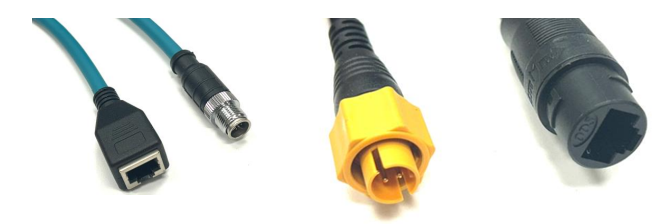
Typically this is Simrad part number 000-0127-56, Ethernet adapter cable (Yellow 5p Male To RJ45 Female)
or a Simrad M12 X-Coded to RJ45 Adapter Cable (left) for MFDs with a Gigabit port
Upgrade to the latest software on your Simrad
- Check your current version: Go to Settings > System > About on your Simrad display to see your exact model name and current build number.
- Download via official site: Look up your specific model on the Simrad Download Hub to get the matching file.
Upgrade Nightwave Digital to the latest firmware
You can check the installed firmware version using any of the following connection methods:
Wired LAN connection to PC
Mobile web browser wirelessly connected to Nightwave WiFi
Firmware upgrade can also be achieved via the Sionyx mobile app, which will take about 15 minutes
https://support.sionyx.com/en/support/solutions/articles/61000317815-how-to-update-nightwave-digital-firmware-using-sionyx-mobile-app
Firmware upgrade can also be performed via a Wireless web browser
Always bench-test prior to physical installation
For the installation of any new equipment, bench-test the components first, so you understand proper connectivity, function and device interaction, before pulling cable or drilling holes.
For the Nightwave Digital, temporarily connect cables, PoE Injector and configure the connection on your Simrad, so you understand how and where the system needs to connect, and how it operates.
Using the Simrad adapter cable and the supplied 1.5M Cat5e network cable, the Nightwave Digital PoE Injector output should connect directly to an available Ethernet port on the rear of your Simrad.
Routing (high bandwidth) digital video data though a bandwidth-limited marine switch will result in video quality loss, video artefacts or lack of connectivity. If you are unable to free up an ethernet port on your Simrad, a (non-marine grade) unmanaged, gigabit network switch can be used to provide additional RJ45 network ports.
We provide detail on this in the last section of this article
Sionyx Tool Panel & Live Video view
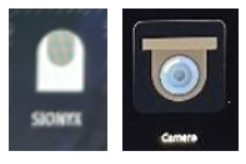
The Sionyx Tool Panel (left) is used to access controls for image processing, resolution, aspect ratio etc.
The Simrad Camera icon is where you will view live Nightwave Digital video.
Camera configuration
Setting up the camera within the Simrad system is described here:
https://support.sionyx.com/a/solutions/articles/61000319151