
Bench test the Nightwave Digital before physical installation
Quickly & easily check connectivity, installation location, & field of view
before drilling holes or running cable
If viewing matrix on a phone, be sure to scroll all the way to the right, and review the full width of the table
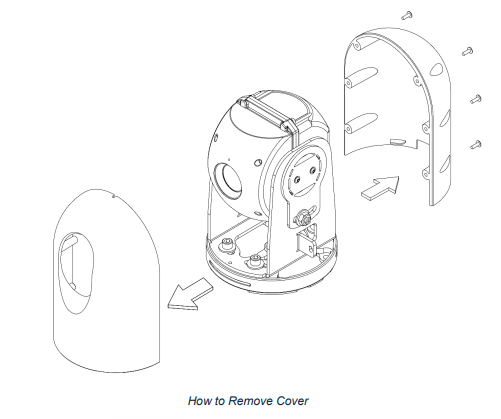
Nightwave Digital clamshell cover screws
Nightwave Digital ships with 2-3 Allen head screws holding together the covers. You will remove these prior to bench testing, and during final installation replace them with the 6 additional (threadlock-coated) screws included with the installation kit
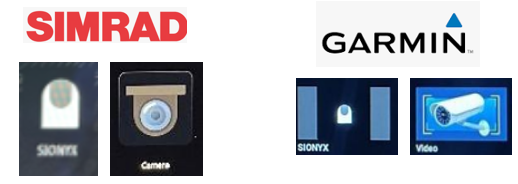
The Sionyx Tool panel icon is for camera settings & configuration
Use MFD Camera app or Video icon to view live, digital nightvision video
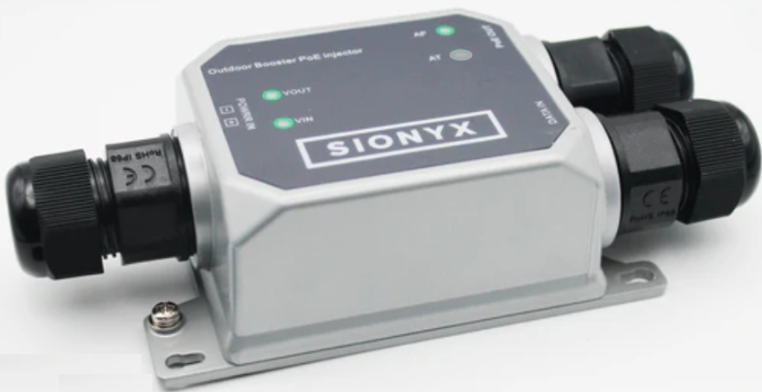
Power over Ethernet (PoE) Injector is included with Nightwave Digital
It is normal that AT will not be lit
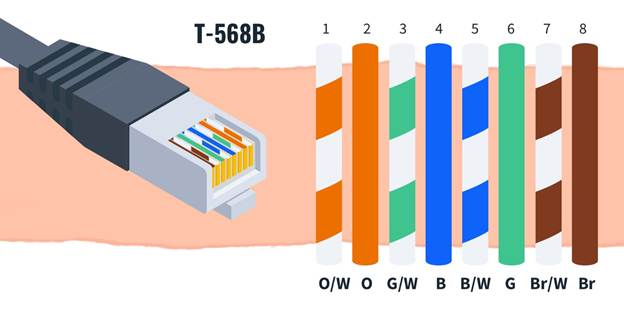
Network cables are standard, Cat 5e, straight 568-B
One 10M and One 1.5M cable supplied with Nightwave Digital
OK to run alternative cables (up to 100M in length)
and terminate with RJ45 plugs after running cable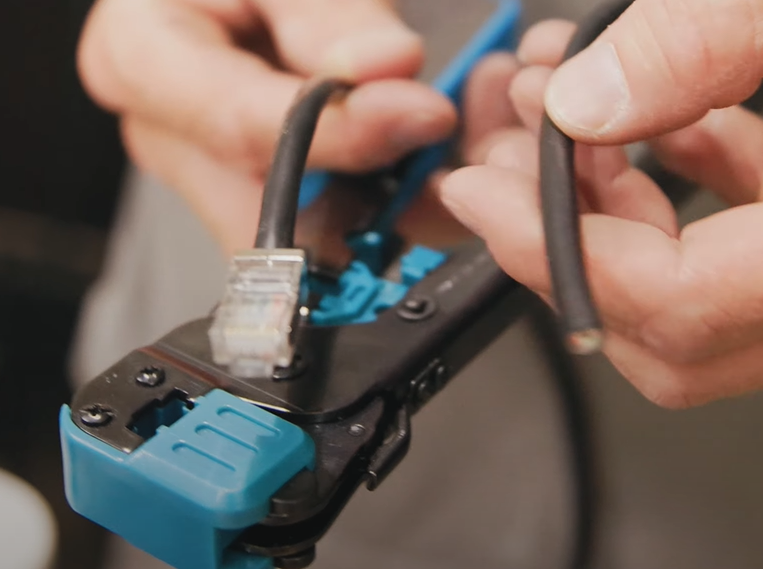
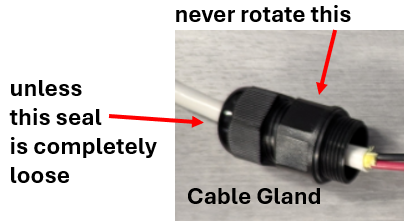
PoE Injector Cable Glands
Garmin MFDs - Compatibility
Update Garmin firmware before installation
Garmin Software version 40.02 added support for the Sionyx Nightwave Digital camera.
If running on an older Garmin and you don't see the Nightwave listed in Video sources
Access the Sionyx Tool Panel, Turn Compatibility mode on, reboot camera
Nightwave will show up as "GC200" in Video sources
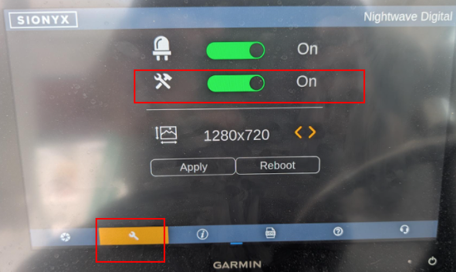
On older Garmins, you may not see a Sionyx Tool Panel on your MFD screen.
Access the Compatibility mode switch using the Sionyx mobile application.
Use the Sionyx tool panel to select resolution (and therefore aspect ratio) of the video stream. Setting resolution to a mode that does not match the screen format can make the video appear grainy, as the MFD will need to interpolate inter-pixel values rather than faithfully displaying the scene pixel by pixel.
After each change of resolution, camera reboot is required.
Most Garmins are: 1280 x 720 (aspect ratio 16:9) or 960 x 720 (aspect ratio 4:3)
Garmin 8000 series MFDs and older require a PoE Isolation coupler
Plus one extra network cable
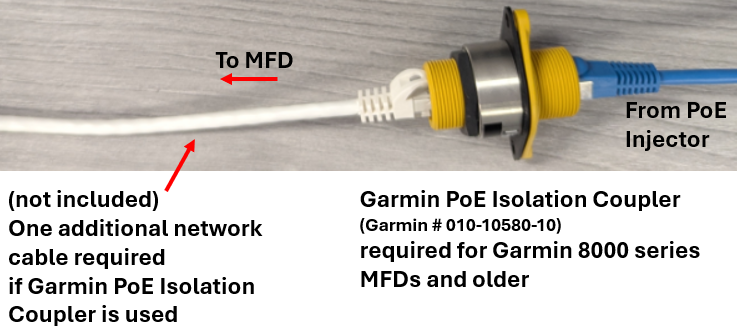
Garmin 9000 series do not need a PoE Isolation coupler.
Garmin built PoE protection into these models
Garmin MFDs - Network Connection
Directly connect PoE Injector output to the rear of the MFD
(via a PoE Isolation coupler if required)
Garmin GMS-10 / Network expanders do not have the bandwidth to handle digital video plus other network traffic
Garmin 9000 series
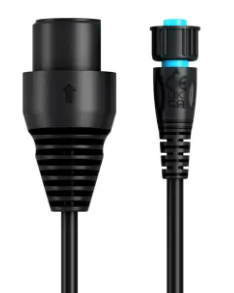
Use a Garmin Marine Network Adapter Cable
RJ45 (Female) to BlueNet (Female)
Garmin part number 010-12531-11
Simrad MFDs
- Upgrade Nightwave Digital to NightIQ (firmware v3.0.2 or higher) for improved integration with Simrad systems.
- Upgrade Simrad / NEON software on the MFD to the latest version.
Directly connect PoE Injector output to the rear of the MFD
Simrad NEP switches / Network expanders do not have the bandwidth to handle digital video plus other network traffic
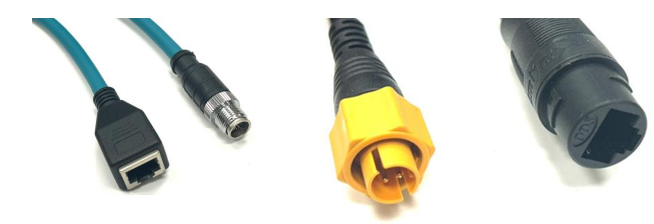
Use a Simrad M12 X-Coded to RJ45 Adapter Cable or
Simrad Ethernet Adapter Cable Yellow 5p Male To RJ45 Female
Sionyx Mobile Application

Password for Nightwave Digitals running early firmware is sionyxcam
NightIQ
Unique factory-supplied password for mobile app is supplied on a sticker in the box, printed on top of the camera module and shown in the Sionyx Tool Panel
NightIQ for Nightwave Digital delivers powerful new camera functionality (and improved communication with Simrad systems)
Before you upgrade, be sure to have the factory password supplied with the camera - until then you can use the password
sionyxcam
Upgrade can be performed quickly by connecting a PC to your marine network:
or via a Web browser
or via the Sionyx mobile app which will take about 10 minutes:
Our updated Nightwave Digital User Guide contains information on NightIQ functionality
and the firmware update process - from p.97 onwards
Resources
Pro-tip
For an even sharper, clearer image, once installation is complete, remove the circle of protective film from the lens of the Nightwave Digital.