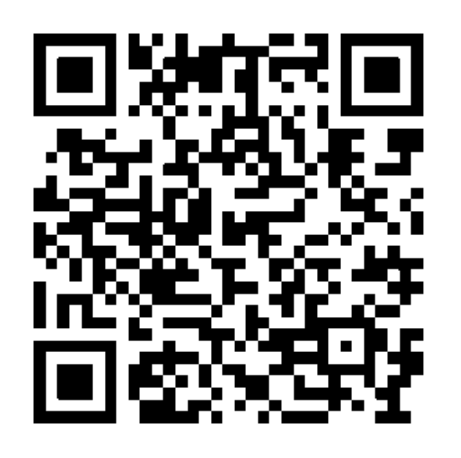
Get File:
Please use this QR code to Download NightIQ file (firmware ver 3.0.x) onto your mobile device.
Upload File onto Nightwave Digital
Close all other applications on your mobile device, turn OFF Cellular Data if you have a SIM card.
Connect to the Nightwave via the SIONYX mobile app. Use the SIONYX app that has the black background.
(There is a second SIONYX app that is only for the Aurora monocular; that has a blue background.)
Turn ON Airplane mode
Turn ON Bluetooth
Turn ON WiFi
With firmware ver 2.1.6 – the mobile app password is sionyxcam
Once you update to NightIQ (ver 3.0.2 and later) the password will change to the unique password for your Nightwave . This factory-supplied password is included in the box and printed on the camera head under the outer covers.
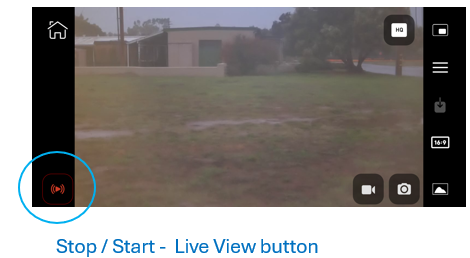
Once connected, if you see live video from the camera, please turn off the live view by hitting the red button on the lower left of the live view screen.
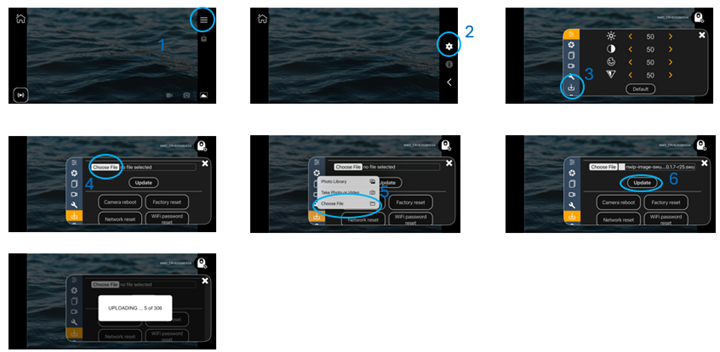
Touch the screen to bring up the menu icons.
Hit the "Menu" icon (three horizontal lines)
Gear “Settings” icon
"Download" Icon
Choose File – (starts with “nwip-image…..”)
Update
- The upload will take about 10 minutes
- Keep the phone near the camera
- Do not use the phone for anything else during the update process
Once uploaded, Reboot everything including MFDs.
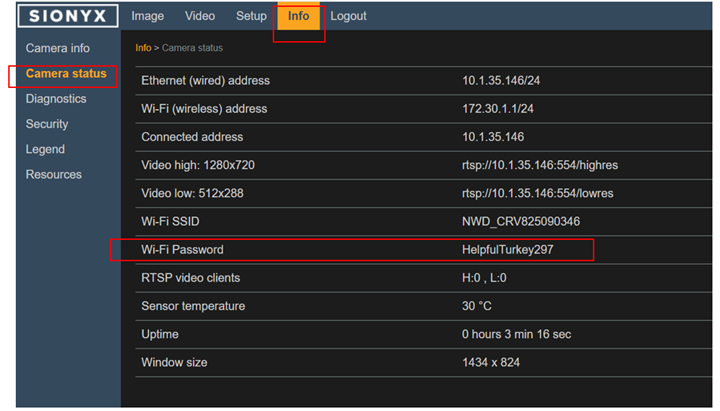
Rebooting will drop the Wi-Fi connection on the mobile device. You will need to reconnect using the new password to get back into the app.
The new password will also be shown in the SIONYX Tool-panel (on the MFD or through the app) under the "Info" tab/"Camera Status" row.
See User Guide section 9 IMAGE SETTINGS for details on the new features and functionality provided by NightIQ
User Guide linked here and attached below
===================== Reference Screenshots =========================
Finding new Wifi password on SIONYX Tool-panel